App Store verification page
Shadowrocket download
and App Store verification
This page covers three things: where to get the app, how to confirm you have the genuine version, and how to restore it on a new device after buying once. Shadowrocket is a paid client sold exclusively on the App Store as a one-time purchase, developed by Shadow Launch Technology Limited, app ID 932747118.
The button opens the App Store product page in a new tab; every download link on this page points to the same product page.
- Developer: Shadow Launch Technology Limited
- App ID 932747118
- $2.99 one-time purchase
- Works on iPhone and iPad
- Mac / Apple TV available in the same store
App Store product page
- Developer Shadow Launch Technology Limited
- App ID 932747118
- Price $2.99 one-time purchase
All three must match — that's the app described on this site.
Store and account region
First, confirm which App Store you're looking at
The App Store is split into separate storefronts by the country or region of your Apple ID. If you can't find Shadowrocket, it's usually not the device — the storefront for your account's region simply doesn't list it.
The App Store is not one single global store. The same app may be listed in some countries' or regions' storefronts and not others; which storefront you see depends on the country or region of the Apple ID you're signed in with, and has nothing to do with your device model, system language or where you are. The mainland China App Store does not currently list Shadowrocket, so not finding it there is normal — it doesn't mean your phone or system is broken.
To confirm which storefront you're currently in, check the paths below one by one. All three are in Settings and the App Store on iPhone or iPad — no external page needed.
| What to check | Path on your device | Notes |
|---|---|---|
| Current store region | Settings → your Apple Account at the top → Media & Purchases → View Account | The country/region shown on that page is the storefront your App Store is currently using |
| Change country or region | Settings → your Apple Account at the top → Media & Purchases → Country/Region → Change Country or Region | The system lists the requirements for that region first; whether the change goes through depends on what the system tells you |
| Purchased | App Store → profile picture in the top right → Purchased | Apps purchased with that account stay in the list, so you can download them again here after switching devices |
Changing your country or region is an Apple Account-level action. The system first checks whether that region is available and whether requirements such as billing address and payment method are met; requirements differ by region, so follow Apple's official pages and the prompts on your device for the exact steps. This site does not provide accounts, does not handle region changes for you, and makes no promise that a change will succeed. Two things are worth noting before and after a change: existing subscriptions and account balance may be affected, and some purchased content may appear differently in the new region's storefront. Both are likewise governed by Apple's official documentation.
If your account region is fine but you still can't find it, check your search term first. Typing the full name Shadowrocket works better than a shortened version, and store search is spelling-sensitive — one missing letter changes the results. If apps with similar names appear in the results, don't download yet; run through the three checks in the next section.
Store region and the country your device is in are two different things. Your device can travel; the store region only follows your Apple ID account settings.
Genuine app check
Developer, icon, app ID: all three must match
Store search results may include several apps with similar names, and the name alone can't tell them apart. Shadowrocket's product page can be confirmed with three pieces of information, all of them on the store page.
-
01
Developer name
Shadow Launch Technology Limited
The small line under the app name on the store page. This is the most direct check: if the developer name isn't Shadow Launch Technology Limited, it isn't the app described on this site.
-
02
App icon
A rocket shape with a blue-purple gradient outline on a white background
The icon used in this site's header and footer is the same official artwork as the icon on the store page. If the shape or colors don't match, go back and check the developer name again.
-
03
App ID
932747118
The string of digits at the end of the store page URL, in the form apps.apple.com/us/app/shadowrocket/id932747118. The app ID is unique and never reused — when you copy the link, check that the digits are 932747118.
Official screenshots from the App Store product page (English interface)
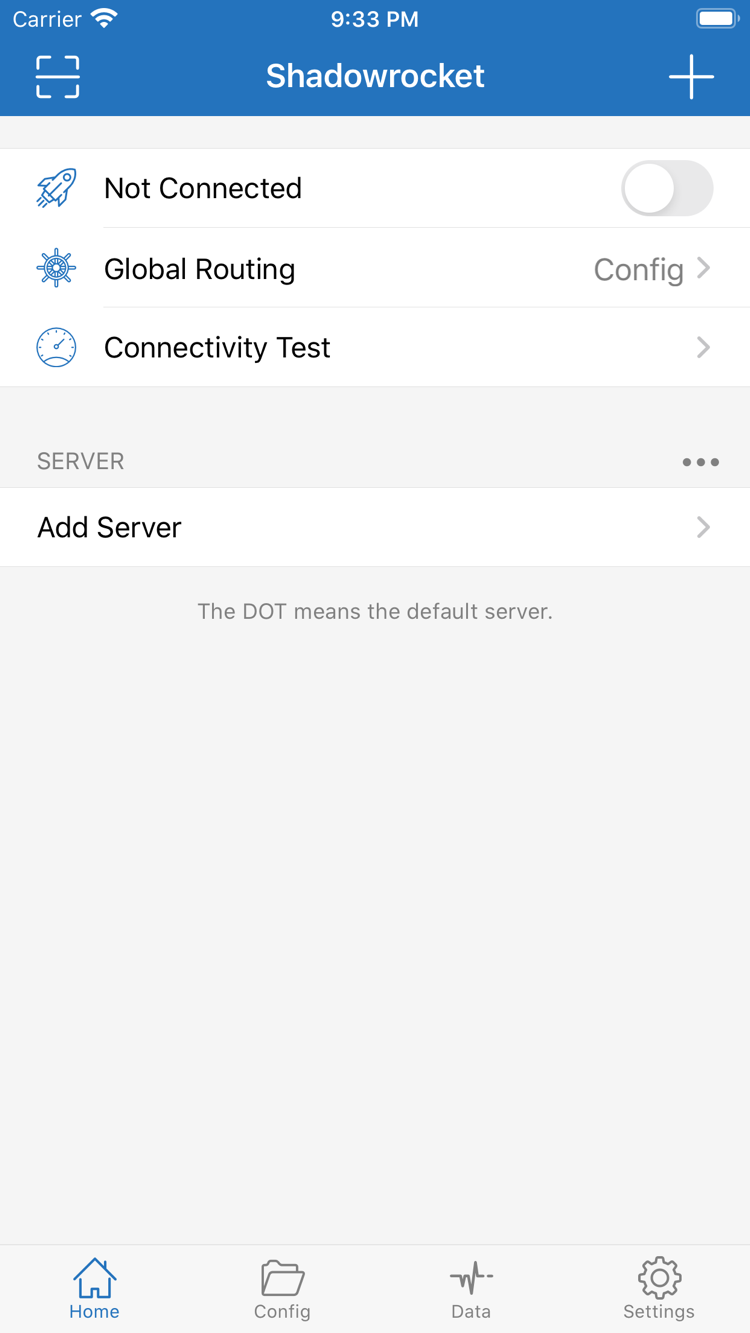
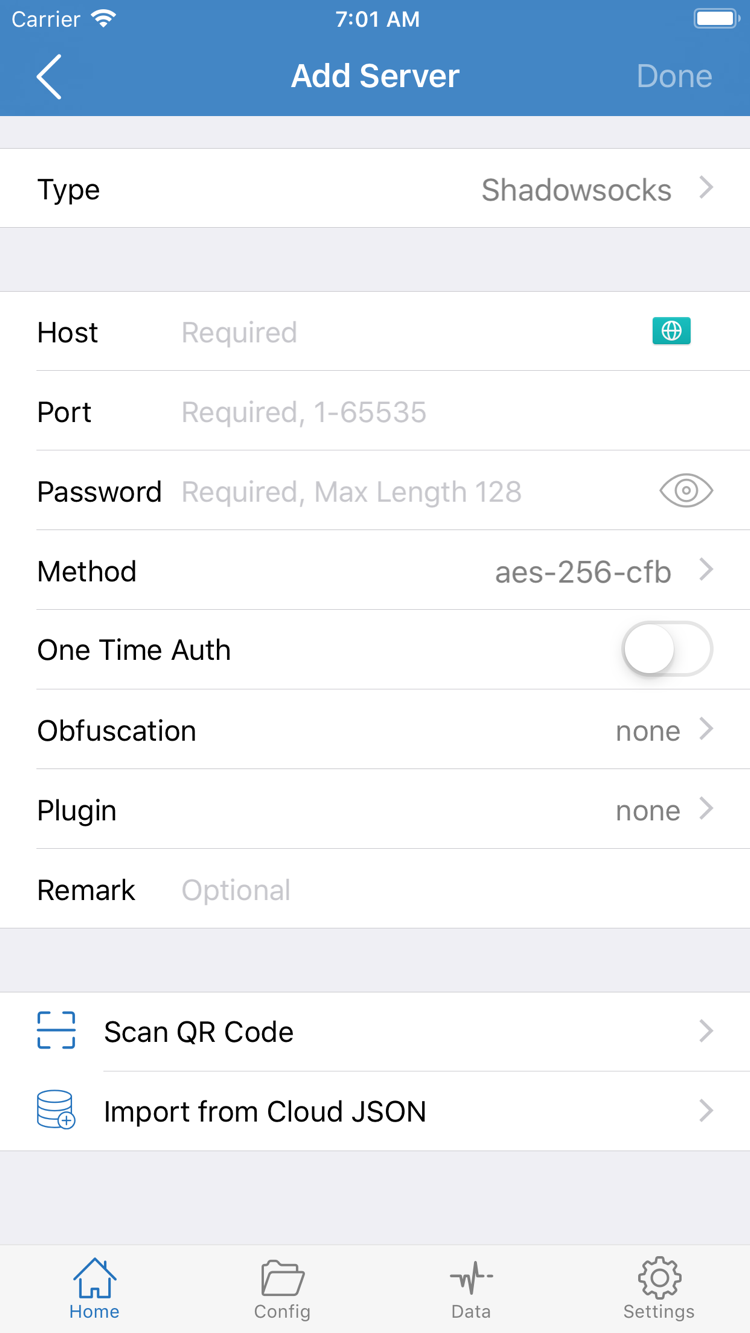
When all three match, you can be sure this is the genuine page. Purchases and payments are handled by Apple inside the App Store, and you never need to give your Apple ID password to any third-party page. If a page asks you to sign in or pay outside the store, it isn't the App Store purchase flow.
Once installed, open the app and you'll see the same interface as the screenshots above: the Home page has the connection switch and current status at the top, Global Routing and Connectivity Test in the middle, and the SERVER group with the Add Server entry below. The interface uses English labels, and these names are written the same way in the app and on this site, so you can read them side by side.
iPhone
Getting it on iPhone: first launch and permission prompts
The compatibility section of the store page currently lists iOS 13.0 or later; requirements may change over time, so refer to the App Store page. Installation works the same as any other app — no extra tools are needed.
-
Check the three details on the store page
Search the App Store for Shadowrocket, open the product page, and check the developer name, app icon and app ID as described in the previous section.
-
Confirm the purchase
Tap the price button to complete the one-time payment, confirming with Face ID, Touch ID or your device passcode. Payment is handled by the App Store, and the purchase is tied to the Apple ID you're currently signed in with.
-
Wait for the download to finish
The system handles the download and installation, and the app icon appears on the Home Screen when it's done. Nothing in this process requires credentials from a third party.
-
Handle the VPN configuration prompt on first launch
The first time you open the app, iOS shows a VPN configuration system prompt — tap Allow and enter your device passcode. This prompt comes from the system, not from a setting inside the app.
-
Import the server details you already have
Once inside the app, use Add Server to fill in Host, Port, Password, Method and other fields manually, or use Subscribe to import a subscription link you already have. Server details and subscription links come from your own service provider.
-
Choose a Global Routing mode and connect
On the Home page, choose Config, Proxy or Direct, then turn on the switch at the top to connect. For everyday use, Config is usually enough — rules decide which traffic goes through the proxy and which connects directly.
About the VPN configuration system entry
After you allow it, a matching VPN configuration appears under Settings → General → VPN & Device Management. The system uses it to hand traffic to the app; deleting it is the same as disconnecting, and the app will ask again the next time it connects. The exact wording of the prompt depends on your system version — refer to what your device actually shows.
To check whether you've already bought it, open the App Store → profile picture in the top right → Purchased and search the list for Shadowrocket. Anything you can see there can be downloaded again after switching or deleting, with no second charge.
iPad and the same account
iPad: one Apple ID, one purchase
Purchases follow the Apple ID, not the device. You don't need to buy separately for iPhone and iPad.
Once you've bought it on iPhone, an iPad signed in with the same Apple ID can download it straight from the App Store with no second payment; the same is true if you bought it on iPad first. Whether it counts as a universal purchase is shown on the App Store page.
The main difference on iPadOS is layout: the wider screen can show lists and details side by side, and the setting names are exactly the same as on iPhone — Global Routing, On Demand, Add Server and Subscribe are all the same set. The Add Server form has the same fields too: Type, Host, Port, Password, Method, with Scan QR Code and Import from Cloud JSON at the bottom.
System requirements are likewise shown on the App Store page. iPhone and iPad share the same store page, and its compatibility section lists the supported device types.
Mac, Apple TV and Apple Vision
The compatibility section of the same App Store page also lists Mac, Apple TV and Apple Vision. Whether it's a universal purchase with iPhone and which system versions each one needs are all on that same page — refer to the App Store listing. Whichever device you install on, the entry point is the same App Store product page.
Switching devices and restoring
New device or reinstall: download it again from Purchased
Purchases are tied to your Apple ID, not to a device. After switching devices you can download it again without paying a second time.
-
Sign in with the Apple ID you bought it with
Check the account you're signed in with under Settings → your Apple Account at the top. This is the step that most often goes wrong when you switch between several accounts or share a device with family.
-
Open the Purchased list
Open the App Store, tap your profile picture in the top right to open the account page, and choose Purchased.
-
Find Shadowrocket and download it again
Search the list for the app name and tap the cloud icon to download. If your account has a lot of apps, the search box is faster than scrolling through the list.
-
Import your own details again
Once installed, use Add Server or Subscribe to import the server details or subscription link you already have. Subscription links come from your own service provider.
If you can't restore it, check these three things first
-
Is it the same account?
Purchased items follow the account. If the new device is signed in with a different Apple ID, this purchase won't appear in the list.
-
Is the store region the same as when you bought it?
Purchased items are shown for the current account and the current region's storefront. If the account's region has changed, the list may differ from what you saw at purchase time, and you'll need to go back to the original region's storefront to see it.
-
Are the system and store status normal?
An unstable network, not enough storage, or a payment method that needs attention can all leave a download stuck in a waiting state. Read the message the App Store gives you first, then work through it item by item.
About Family Sharing: the App Store page states whether the app supports Family Sharing. Whether it's available and how to set it up are governed by the store page and Apple's official documentation.
Price and one-time purchase
A one-time payment — you're charged only once
US pricing is about $2.99 as a one-time payment; other storefronts show the price in local currency, and the exact amount is shown on the App Store page.
Shadowrocket is a paid app sold as a one-time purchase: you pay once, the purchase is tied to your Apple ID, and downloading or updating again under the same account costs nothing more. Updates are delivered by the App Store, just like any other app on your system.
| Item | Notes |
|---|---|
| Price | About $2.99 in the US, one-time payment; each storefront shows the price in local currency — refer to the App Store page |
| Billing | Charged only once; the purchase is tied to your Apple ID |
| Updates | Delivered by the App Store at no extra cost |
| What's included | The client itself; no servers, routes or data allowance |
| Restoring on a new device | Download it again from Purchased in the App Store — no extra payment |
How you pay
A client purchase is not a server plan
What you buy is the right to use the Shadowrocket client. The app itself doesn't provide servers, routes or subscriptions — you need server details or a subscription link you already have (obtained from your own service provider), and you import them before a connection can be made.
- Client cost: paid once to the app developer; the purchase is tied to your Apple ID
- Server cost: billed separately under your service provider's terms, unrelated to the client payment
- This site does not provide, sell or recommend any nodes, subscriptions or invite codes — it only explains how to put information you already have into Shadowrocket
Purchase, billing and refund questions are handled by Apple under App Store rules, through the account and purchase history pages on your device. This site is not the app developer and takes no part in any transaction.
FAQ
Download and purchase FAQ
Six questions directly about getting the app, restoring it and pricing. For more detailed troubleshooting, see the Q&A page.
I can't find Shadowrocket in the App Store in mainland China — is something wrong with my device?
No. The App Store is divided into separate storefronts by the country or region of your Apple ID, and the mainland China storefront does not currently list this app; not finding it has nothing to do with your device model or system version. You can first check your account's country or region under Settings → your Apple Account at the top → Media & Purchases → View Account, then decide what to do next.
The download keeps spinning or says it can't be downloaded — what should I check first?
Work through whatever the App Store message says: make sure the network is working, the device has enough storage, and your Apple ID sign-in is fine. If the message mentions a payment method or billing issue, follow the store's instructions. You can also sign out and back in on the App Store account page, then return to the product page and try again.
After switching to a new iPhone, do I have to pay again?
No. Purchases are tied to your Apple ID. Sign in with the same account you bought it with, open the App Store → profile picture in the top right → Purchased, find Shadowrocket and download it again — you won't be charged twice.
Do I have to buy it separately for iPad?
One purchase with the same Apple ID covers both iPhone and iPad. Purchases follow the account, not the device; whether it counts as a universal purchase is shown on the App Store page.
Can I install it on a Mac or Apple TV?
The compatibility section of the same App Store page lists Mac, Apple TV and Apple Vision. Whether it's a universal purchase with iPhone and which system versions each one needs are shown on the App Store page; the entry point is the same product page for all of them.
The interface is in English — what if I don't understand it?
Shadowrocket uses English interface labels, such as Home, Config, Proxy, Direct, Global Routing, Add Server and Subscribe. These are fixed names in the interface; the quick-start guide and glossary on this site explain them one by one using the original wording, so you can read them side by side.